How to Print Off Multiple Work Orders in Yardi Voyager
How to print multiple work orders in Yardi Voyager
1.In Voyager, you will go to the “Advanced Maint + Purchasing” role. Supervisors, this is your default role in Yardi. (Where Work Order Dashboard lives) First, use the Work Order Dashboard to review the day’s work orders. Then, complete the next steps to print in bulk.
2. On the left-hand side menu, go to Reports > Work Order Reports > Invoice Pay and Charge Detail
3. On the next screen, you will enter your property, the work order statuses, and the call dates. Then click “Submit” to run the report.
*Note: You’ll want to make sure that the dates and statuses you pull here are the same as what you reviewed on the work order dashboard for consistency/ensuring you’re not missing anything.
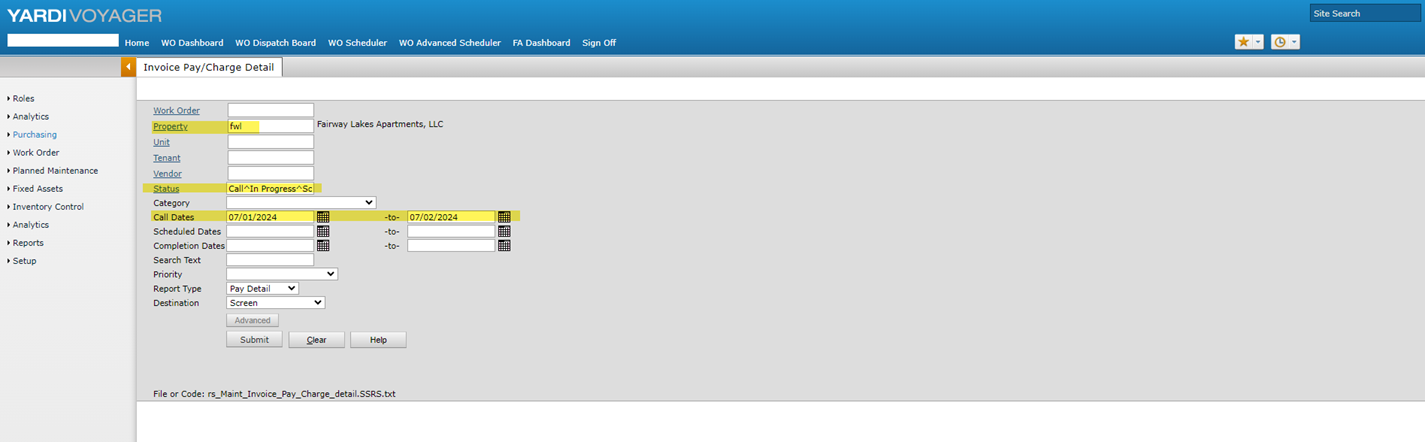
*Note: To add multiple statuses, click the blue “Status” link > click the check box next to the needed statuses > click OK
*Note: You’ll want to make sure that the dates and statuses you pull here are the same as what you reviewed on the work order dashboard for consistency/ensuring you’re not missing anything.
*Note: To add multiple statuses, click the blue “Status” link > click the check box next to the needed statuses > click OK
4. On the next page, you will click the blue floppy disc icon > click PDF. This will download all the work orders into one PDF document for you to print.
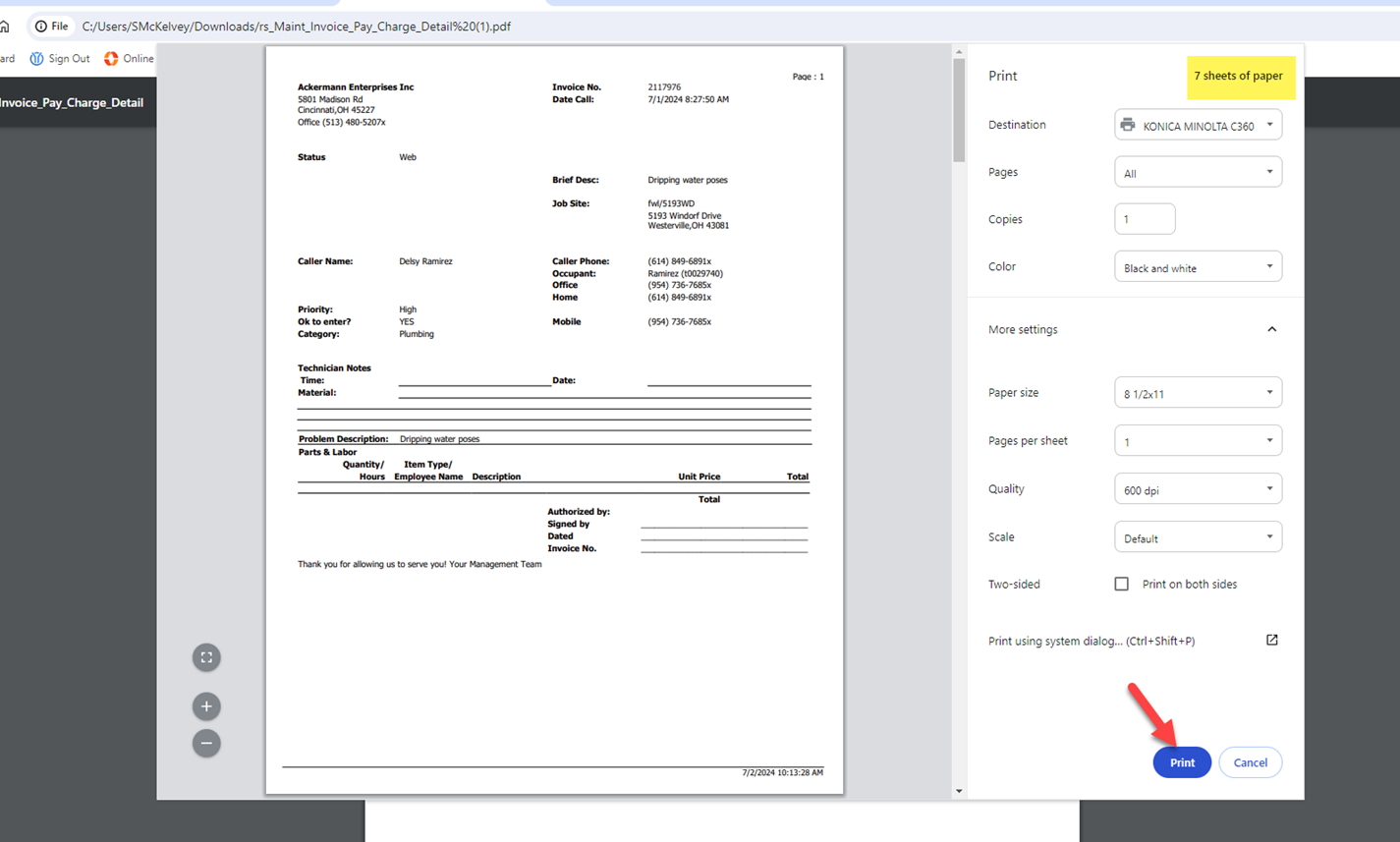
5. After opening the downloaded PDF, click the print icon
6. Finish printing the document, and you’ll be all set! In the example below, you will notice that there are 7 sheets of paper (7 work orders) total that will be printed.
Related Articles
How to Add Permanent Maintenance Notes for Resident Work Orders
Sometimes, residents may want to add permanent notes to their profile that they always want maintenance to remember/follow. For example, wearing shoe covers in the home. There is a way in Yardi to add these notes to the resident's profile so that ...Projected Occupancy Report - Best Practice
The Projected Occupancy in Yardi Voyager report should be pulled one week minus one day (6 days) from the start of the week. For example, If we wanted to pull an 8 week projected week occ report for BWA with data starting from Monday 6/16/25, we ...Troubleshooting Resident Payments - Debit & CC
When a resident makes a debit or credit card payment, we can review the status of those payments by going to the Credit Card Dashboard in Voyager. To get there, go to Voyager > Roles > Payment Processing Admin. On the next screen (titled: Payments ...